The Amazon Fire TV Stick is the most popular IPTV device in Ireland — and for good reason. It's cheap, it plugs into any HDMI port, and once set up it turns any television into a full streaming machine with 55,000+ live channels, 176,000+ movies and 46,000+ series. The catch: IPTV player apps aren't in the Amazon Appstore, so you need to sideload one. This guide walks you through the entire process in about ten minutes, no technical knowledge required.
Because IPTV players are installed from outside the Amazon Appstore, the Fire Stick needs your permission first. This is a standard Android setting and completely safe to enable:
On recent Fire OS versions Amazon hides it. Go to Settings → My Fire TV → About, then click on your Fire TV Stick name seven times. Developer Options will appear in the menu.
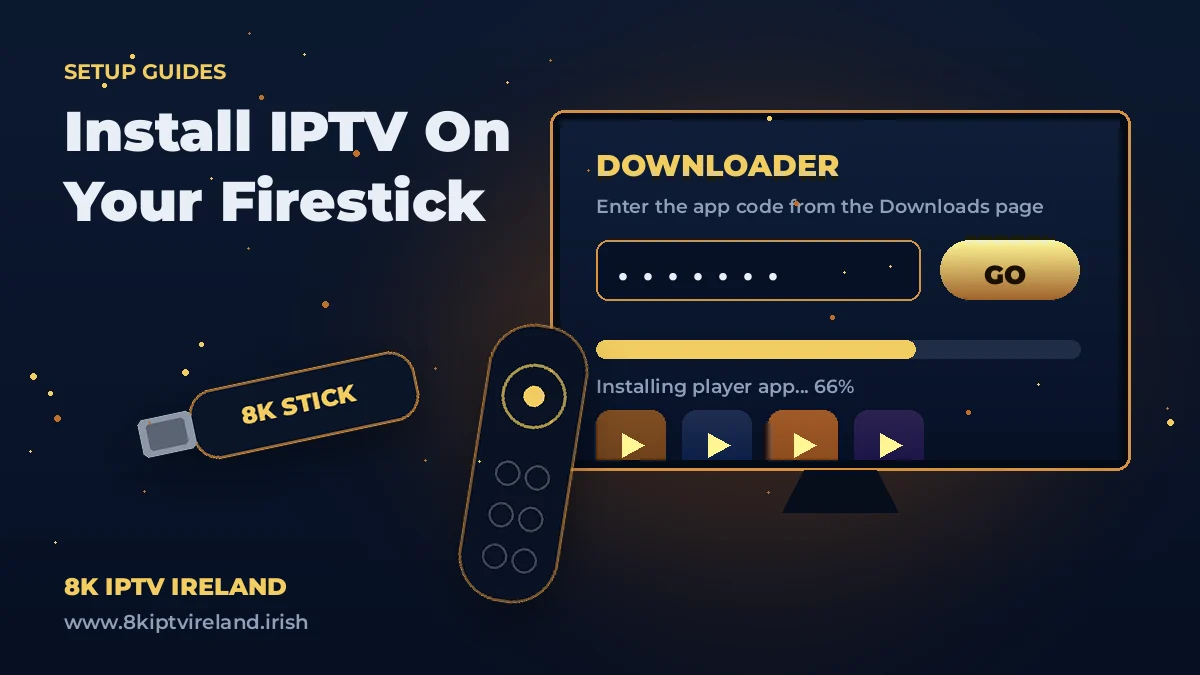
Downloader is a free, official app from the Amazon Appstore that lets you fetch files directly onto your Fire Stick using short codes.
Now the easy part. Open Downloader, click into the URL field, and enter the installer code for the player you want. Every official Strong 8K app — along with its current Downloader code — lives on our Downloads page, so you're always grabbing the latest version.
If you're unsure, start with our flagship all-in-one player — it handles live TV, movies and series in a single interface. Prefer a TV-guide-first layout? TiviMate 8K Pro is the fan favourite for channel zapping. All options are compared on the Downloads page.
Open your newly installed player and add your subscription:
That's it — you're watching. Browse the channel list, mark your favourites, and explore the on-demand library.
Double-check that Apps from Unknown Sources is enabled for Downloader (Step 1). If the download fails, re-enter the code — codes occasionally update when a new app version ships, so grab the current one from the Downloads page.
Nine times out of ten this is a typo in the portal URL, username or password. Re-enter them exactly as sent — then restart the app. Still stuck? Message our support on WhatsApp and we'll sort it live.
Try the decoder switch described above and move the Stick to the 5GHz network. If your whole connection is slow in the evenings, test your broadband speed — the issue usually sits between your router and your ISP.
Not subscribed yet? Test everything on your own Fire Stick first — full access for 24 hours, no credit card required.
Start Your Free TrialYes — Downloader is an official Amazon Appstore app, and sideloading is a built-in capability of Fire OS. You're simply installing a media player app.
Yes. Any Fire Stick running Fire OS 5 or later works. On older or Lite models, choose a lightweight player (our Fast 8K option is built exactly for them) for the smoothest experience.
Your plan covers the number of simultaneous devices you chose at purchase — 1 or 2 screens at once. You can install the apps on as many devices as you like; the limit only applies to concurrent streaming. See plans for details.
Minutes. Order or request a trial on WhatsApp, and your login details arrive right away during normal operating hours.
Ready to go? Grab your app from the Downloads page, or start with a free trial and have live TV running on your Fire Stick before your kettle boils.
Loading…